npxt.graph progress
Day-end update

npxt.graph progress updates

A faithful, text-first version of the recorded walkthrough — everything said and shown in the video, reorganised by topic, with screenshots and the full recording embedded. Wireframe v19.

📅 13 July 2026 6 min 40 s 🎞 Screen recording · 1440p 🧩 Cerox Engineering demo 🚧 In development & fine-tuning 📄 Download PDF
00

Overview

This is a quick day-end update on npxt.graph. A few things are still in development and fine-tuning, but the recording is meant to show the current situation and where the graph is heading. The app is running locally as “wireframe v19” (browser tab title, localhost:8819), demonstrated on a sample company, Cerox Engineering · Pvt Ltd.

The walkthrough covers five things in order: the built-in onboarding tour (introduction, how to read the graph, and the rules), the graph window itself, builder mode and its side panels, the new-company wizard, and an honest note on the one part that isn’t wired up yet — the AI backend.

Faithfulness note

Nothing here is invented. Every claim is taken from the narration or from text visible on screen in the recording. Where the speaker names the demo company as “Cerox Engineering,” the on-screen spelling is used.

01

The recording

Full 6:40 walkthrough. Pick a quality below — the player switches without losing your place. If scripts are off, the middle quality plays by default and each quality is also a direct link.

Quality 1080p ↗ 720p ↗ 480p ↗
02

The onboarding tour

Opening the app starts a short tour with three parts: 1 · How it’s built, 2 · Reading it, and 3 · The rules. It’s described as a simple introduction to what the graph is and how it works — “how to read the graph, what the items are” — followed by a slightly longer rule-set section covering the main rules already discussed. The tour can be skipped at any time to go straight to the graph.

Part 1 · How it’s built — the pipeline

The first part lays out how a company graph is produced, stage by stage. It opens on the owner’s brief and ends with the graph constructing itself:

1 · STATEMENT
Owner describes the company in their own words
3 · ANALYSE
AI drafts a candidate model from the statement + sources
5 · SIGN-OFF
A structured sheet a human approves line by line
8 · GRAPH
Only after sign-off + validation does the graph construct
Tour screen: It starts with the owner's words. A person icon points to a speech card reading 'here's how the company runs…'
0:00“It starts with the owner’s words.” — “A director describes how the company actually runs — clients, people, money, tools — in their own words. This raw brief seeds everything; nothing is drawn yet.” On-screen note: “This very graph began the same way: a director brief, July 2026.”
Tour screen: AI drafts a candidate model — three source dots feed an 'AI' box that outputs a node tree.
4:48“AI drafts a candidate model.” — “The AI reads the statement and every listed source, then drafts a candidate company model — branches, people, clients, tools, the connections between them, and a 1–10 weight on each. All of it is still only a proposal.” On-screen note: “Every AI guess carries a visible mark until a person approves it.”
Tour screen: AI prepares a sheet to sign — a 'SIGN-OFF SHEET' with checkbox rows.
5:12“AI prepares a sheet to sign.” — “Everything proposed — nodes, weights, connections, corrections — is laid out as one structured sheet a human can review line by line. Nothing hides inside the model.” On-screen note: “One row = one decision: approve it, change it, or reject it.”
Tour screen: Only now does the graph construct — six branches (Delivery, Growth, Finance, Governance, Team, Infra) connect down to a CEROX base node.
5:19“Only now does the graph construct.” — “With a signature and a green check, the company graph builds itself — branches sized by lasting importance, shaded by how busy they are. Sign-off + validation is the gate; the graph is the output.” On-screen note: “Cerox constructs as six branches — Client Delivery the heaviest.”
NarrationThe main rules were already discussed and are almost all included; they still need a little adjustment. The tour can be skipped at any time.
03

The graph window · Cerox Engineering

This is the graph window that has been the ongoing subject of discussion — the Cerox Engineering map. Its State 0 is considered to look right here, because the data for this company was entered by hand. Stepping into a node “just expands to everything” as you move through each state — which is working as intended, though adjustments are still needed and some problems remain (which is partly why the new-graph flow, below, was built next).

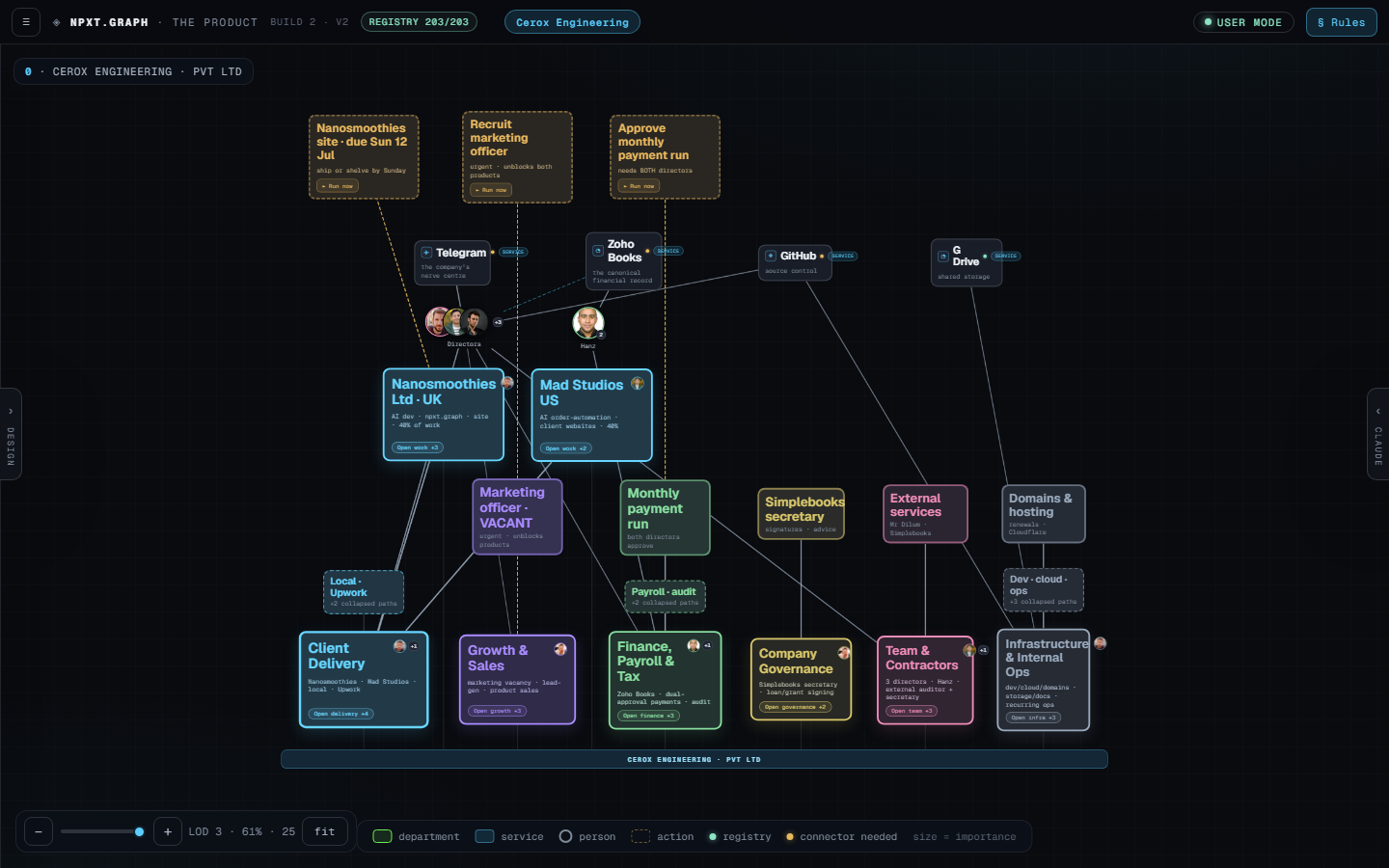
The Cerox Engineering graph in user mode: two flagship product nodes, six department branches, shared service nodes, people, and an urgent action strip, all around a CEROX base bar.
2:00Cerox Engineering · Pvt Ltd — State 0, in User mode. Node colour marks the type; node size marks importance.

How to read a node

department service person action ◼ size = importance

These four node kinds and the “size = importance” rule are shown in the on-screen legend at the bottom of the graph.

What State 0 contains

The whole-company view is made of a few bands. For Cerox this is: the company base bar, six operating branches, two flagship products, the people who run it, four shared services, and one urgent “ready-now” strip across the top.

Nanosmoothies Ltd · UK
Flagship · “AI dev · npxt.graph · site · 40% of work”
Mad Studios US
Flagship · “AI order-automation · client websites · 40%”
Client Delivery
Branch · the heaviest · Nanosmoothies · Mad Studios · local · Upwork
Growth & Sales
Branch · urgent & unstaffed — “Marketing officer · VACANT”
Finance, Payroll & Tax
Branch · Zoho Books · dual-approval payments · audit
Company Governance
Branch · Simplebooks secretary · loan/grant signing
Team & Contractors
Branch · 3 directors · Hanz · external auditor + secretary
Infrastructure & Internal Ops
Branch · dev/cloud/domains · storage/docs · recurring ops

Four shared services the whole company works through: Telegram — “the company’s nerve centre” Zoho Books — “the canonical financial record” GitHub — source control G Drive — shared storage

People: the Directors cluster and Hanz. Urgent “ready-now” strip (dashed action cards along the top): “Nanosmoothies site · due Sun 12 Jul,” “Recruit marketing officer,” and “Approve monthly payment run.”

04

Builder mode & the side panels

A builder-mode switch flips the graph from viewing to editing — “you can edit anything, change stuff, everything is there.” In builder mode the workspace shows three supporting views plus an AI panel:

  • Navigator (left) — a nested tree of the whole company, “like in Figma”: branches, sub-nodes, flagships, and concepts.
  • Notifications — a “Waiting at the gates” list of items needing attention (e.g. from Ruwan, Hanz, Udara, Claude). The speaker notes this is provisional — “we can discuss what to put here.”
  • Presence — a “Who’s around” list showing who is active and where (Ruwan on the Nanosmoothies map, Udara on Mad Studios automation, Hanz logging invoices in Zoho, Niranjan on general upkeep).
  • State Creator Assistant (right) — an AI chat panel that “helps with tasks on the graph itself”: add a node, set weight & load, name a cluster, expand a concept, or suggest a tool. It’s labelled “Sample only — nothing changes silently.”
Builder mode: left Navigator tree, a 'Waiting at the gates' notifications list and 'Who's around' presence list, the Cerox graph in the centre, and a State Creator Assistant AI chat panel on the right.
2:32Builder mode — Navigator tree (left), notifications & presence, the editable graph, and the State Creator Assistant (right). The top toolbar exposes +Node, +Tool, Connect, Undo/Redo, Reset and Export.
05

The new-company wizard

Back in User mode, a “new graph” function handles working across more than one company — “say you work for two companies and need to enter the other one.” It launches a wizard that begins from the owner’s brief, following the same principle shown in the tour: AI proposes → human signs → checker confirms.

  • Company name — the one required input (placeholder “e.g. Lumen Bakery Ltd”).
  • Owner statement — a basic brief from the owner: what the company is, who the clients are, who does what, where the money moves, which apps hold the work. This seeds the AI’s understanding.
New Company Graph wizard, step 1: 'It starts with the owner's words', with Company name and Owner statement fields and the tagline AI proposes, human signs, checker confirms.
3:04New Company Graph · Step 1 “Statement.” On-screen footnote: “Constructing will run npxt.org.create — the company name is its one required input.”

The intended flow after the statement: the AI fills in the company’s details (name, brand, and so on), then asks follow-up questions — telling you what’s missing and prompting for anything left out. It then prepares the sheet to sign; sign-off and a built-in checker/validation step gate the result, and only then does the graph construct. Additional stages exist, as laid out in the “How it’s built” tour.

06

The one gap: the AI backend isn’t wired up

The wizard is powered by AI that, in this version, is not yet connected to the backend. Because of that, the wizard can’t advance past the statement step — entering test data (e.g. company name “nanosmoothies LTD”) and pressing Next does nothing, since the AI plugin isn’t wired up. The step that should fire is npxt.organization.create.

Wizard with company name filled in as 'nanosmoothies LTD'; pressing Next does not advance because the AI plugin is not connected.
4:00Test data entered — the wizard can’t move from “Statement” to the next stage because the AI plugin isn’t connected yet.

The backend work is happening on the speaker’s other screen: the wizard’s AI calls route through a local “claude bridge” (development branch feat/v19-claude-bridge). As shown in the terminal, the bridge’s claude -p call was timing out at ~85 s — the likely cause being that each call boots the full Claude Code environment (all MCP servers, plugins, hooks), which is slow. The plan discussed earlier is that this can later be connected to a cloud API; for now it simply uses the user’s cloud account via the terminal.

VS Code on a second screen: workspace 18.NANO-OS on branch feat/v19-claude-bridge, a terminal debugging the claude -p bridge timing out, and an assistant panel.
3:36The backend “other screen” — the local claude-bridge under development (branch feat/v19-claude-bridge), where the wizard’s AI calls are being wired up.
07

The rules · what State 0 admits

The tour’s third part is the rule set. The headline rule for the whole-company view:

“State 0 admits five bands — nothing else”

The whole-company view admits only five kinds of thing:

  • the company base bar;
  • the branches above it (with any flagship work heavy enough to stand alone);
  • the people who run them;
  • the shared services the whole company works through;
  • one urgent “ready-now” strip in the headroom.

Every band is a rule — an item that fits none of them does not appear in State 0.

Tour screen, Part 3 The Rules: 'State 0 admits five bands — nothing else'.
4:23Part 3 · The Rules — “Logic · what appears.” On-screen example: “Cerox State 0: base · 6 branches + 2 flagships · directors & Hanz · 4 shared services · the urgent strip.”
08

Current status & next steps

Summary in the speaker’s own words: the graph is “almost done.” The main remaining task is getting the AI part working so the flow can be properly tested.

  • Get the AI wired up — connect the wizard to the backend so it advances past the statement step.
  • Test on two or three more companies — e.g. Nanosmoothies and one or two others — to shake out problems.
  • Keep refining the rules — not fixes so much as more rules, plus additions and adjustments, since the model differs a lot per company. A general rule set is already in place, but there’s room to improve it.
Closing, verbatim intent“That’s the current development of the graph and where this is heading — let me know if you think otherwise, or I can keep continuing on the improvements. I won’t make the video longer; I’ll also include a report from this video and send you both.”

This document is that report.

09

Full transcript

Verbatim automatic transcription (Whisper large-v3), with timestamps. Minor speech artefacts are left as spoken; the sections above resolve them against what’s on screen.

Transcript · 6:40 · 53 segments
0:00uh hello this is quick day and update uh still few more things are in the development
0:08uh and fine-tuning but i think this video will help you understand the current situation uh
0:15or where the graph is heading so quickly we have the introduction how it's built
0:23it's a simple introduction about what this is and how it works then uh you have the part two
0:32of the starting tutorial saying how to read the graph uh what are the items and then there's a
0:39little bit longer section of the rule set set of rules like this uh what says what how it's
0:51uh how everything works like mainly the main rules we discussed
0:54probably still need a little bit of adjustments but it includes almost uh the main uh stuff we
1:01discussed you can uh of course skip the tour anytime uh and you can go to the graph now
1:11so this is the graph window and uh this is the one we were keep discussing right
1:17uh xerox engineer one so this one i think uh state zero looks fine in this case
1:26uh for me because uh i did enter the data for this one and let's say i need to go to this and it
1:34uh just expands to everything as uh we go through this each state so that is going fine i think
1:41still adjustments are needed of course yeah and they are because uh these are some problems but
1:49uh yeah so uh in order to uh find about problems further i did start with the data and then i did
1:58start uh creating this new graph uh before that let's see uh we have the builder mod
2:03here build a mode switch you can edit anything again change stuff everything is there so and
2:11then you have the ai chat panel here which will help with the tasks on the graph itself and
2:20to create or edit anything you can use this chatpana and then you have the three kind of view
2:28the uh important things here like the notifications probably we can discuss what to put here uh but
2:36this is uh what's there now at the moment the navigation tree like in figma so i'll go to the
2:42user mode again in order to understand the usage between other companies as well i introduce this
2:50uh new graph function uh like let's say you simply work for two companies and you need to
2:58enter the company here so you can use the new graph which will initialize a wizard that you
3:06can fill in uh so in this case you can put the campaign name and the statement from the owner
3:12such as like we will get a basic statement from the owner about what the company is what they do
3:18and things like that it will help the ai to understand this uh wizard is powered by ai
3:27which is at the moment uh
3:29not connected to the backend but it is going on uh on my other screen like it is connecting to the
3:36cloud local backend uh which we discussed earlier like uh we can uh later connect this to cloud api
3:45but it's simply using the user's cloud account via the terminal in this case so uh you can fill
3:52in like let's say this so there is a little bit problem in this version like i cannot go
4:00next because the ai uh plugin is not wired up but uh uh test data here yeah it does not go
4:13uh from this stage to next it should use the npxt.organization.create one but
4:23there will be other uh stages as mentioned in the original uh original how it's built here so it
4:34might be able to show it a bit in this way but that's another thing that we will need to think
4:40about in this post so what we have here is the uh the AI will print the company name as the
4:52company, so we can go and print the company name number, the brand, and also the name of the company
5:01you need to do to print the company name next.
5:02I'm going to just do it together to show you how it works here so for now I will just show you
5:04question with more questions and it will tell uh what is missing and if you miss anything it will
5:12ask those things and it prepares the sheet to sign uh the sign in process and human sign off
5:19the checker uh validation part is also built in and then the graph contracts construct so that's
5:28uh the current progress uh it's almost done i just need to get the ai part working in order
5:35to properly test it on two or three more companion ideas probably nano smoothies and
5:42something as well so that's the current uh situation uh current development of the graph
5:50and where this is heading so let me know if you think otherwise or uh i can keep continuing on
6:01the improvement of the uh there are lots of uh improvement needs to be done again for the rules
6:07not improvements like more rules and it's adding and adjustments so because uh it is going to be
6:15very different for each company so we need to think of a general set of rules it is already
6:22done but i think there is a room for the improvement of course so i will not keep
6:27make the video much longer i will also include a
6:32report in this uh from this uh video and send you both thanks bye